
# Taxonomy Management
In Credential Engine instances of CAT, taxonomies are referred to as concept schemes.
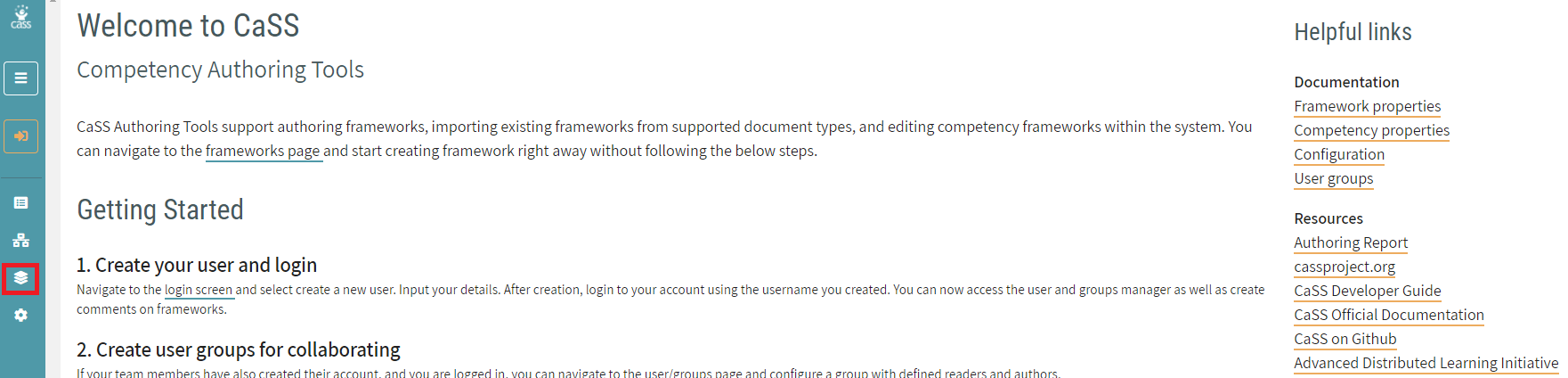
Taxonomies can be used to categorize and label competencies in frameworks. The Taxonomies page can be visited by clicking on the Taxonomies icon on the left side bar highlighted by the red box in the image below.
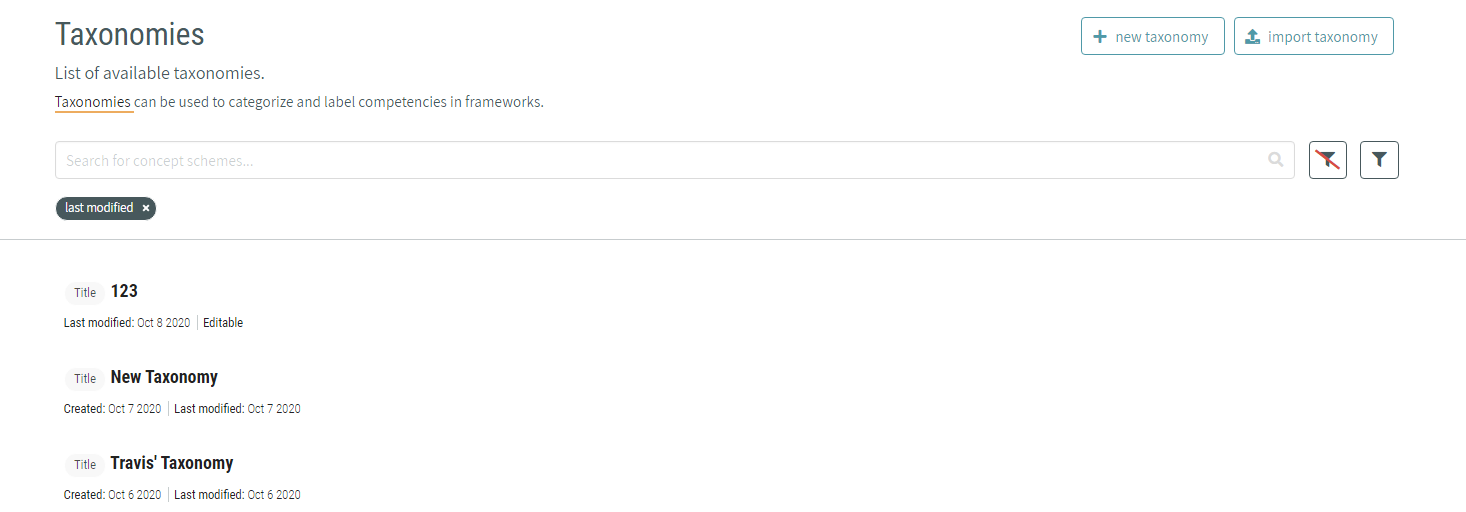
On this page, taxonomies are shown with their names in bold. Beneath the name, The system allows see when it was created and last modified. If the user have permission to edit the taxonomy, it will say Editable.
# Sorting and Filtering Taxonomies
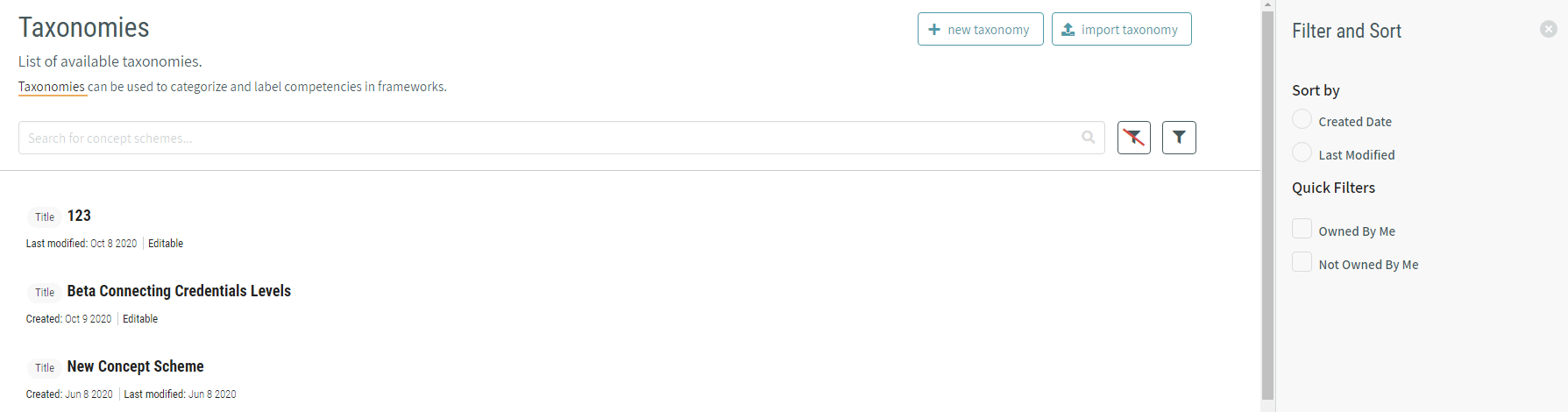
the list can be sorted and filtered of taxonomies by clicking the filter button next to the search bar. The button next to it clears any filters has been applied.

The filter button will open up a side panel to the right of the taxonomy list with options to sort and filter the list.
# Creating New Taxonomies
A new taxonomy can be created within CaSS Authoring Tools by pressing the Create New button at the top of the taxonomy management page.

When the user click on the Create New button to create a new taxonomy, the system will be required to enter a Taxonomy Name to the new taxonomy. Additional properties can be added by clicking the add property button.
# Adding Concepts to Taxonomies
To add concepts to the taxonomy, click the add concept button below the taxonomy details.

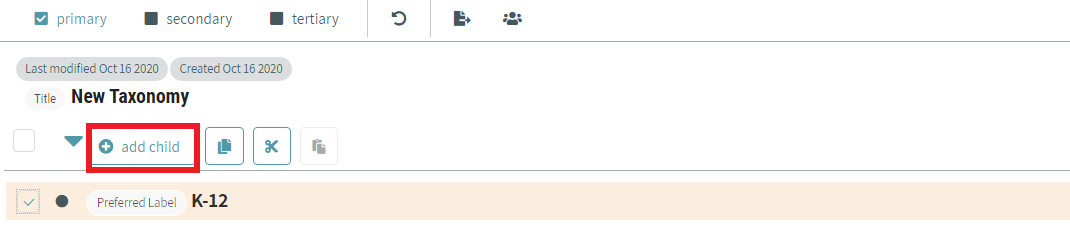
A hierarchy can be constructed of concepts by checking the box to the left of a concept. The add concept button text will change to add child, which The system allows click to place a concept underneath the one has been checked.
# Editing Taxonomies and Concepts
To edit a single concept or taxonomy, hover over the item the user want to edit and an edit icon will appear. Click the icon highlighted in red in the image below.
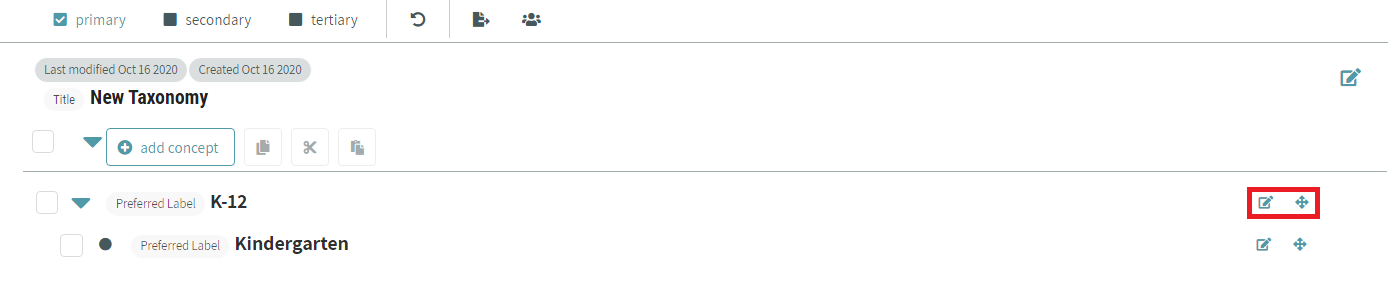
A modal will appear and the properties can be edited for the taxonomy or concept’s properties. This modal also allows the user to delete the concept or taxonomy and export the object. Click done when has been finished making changes.
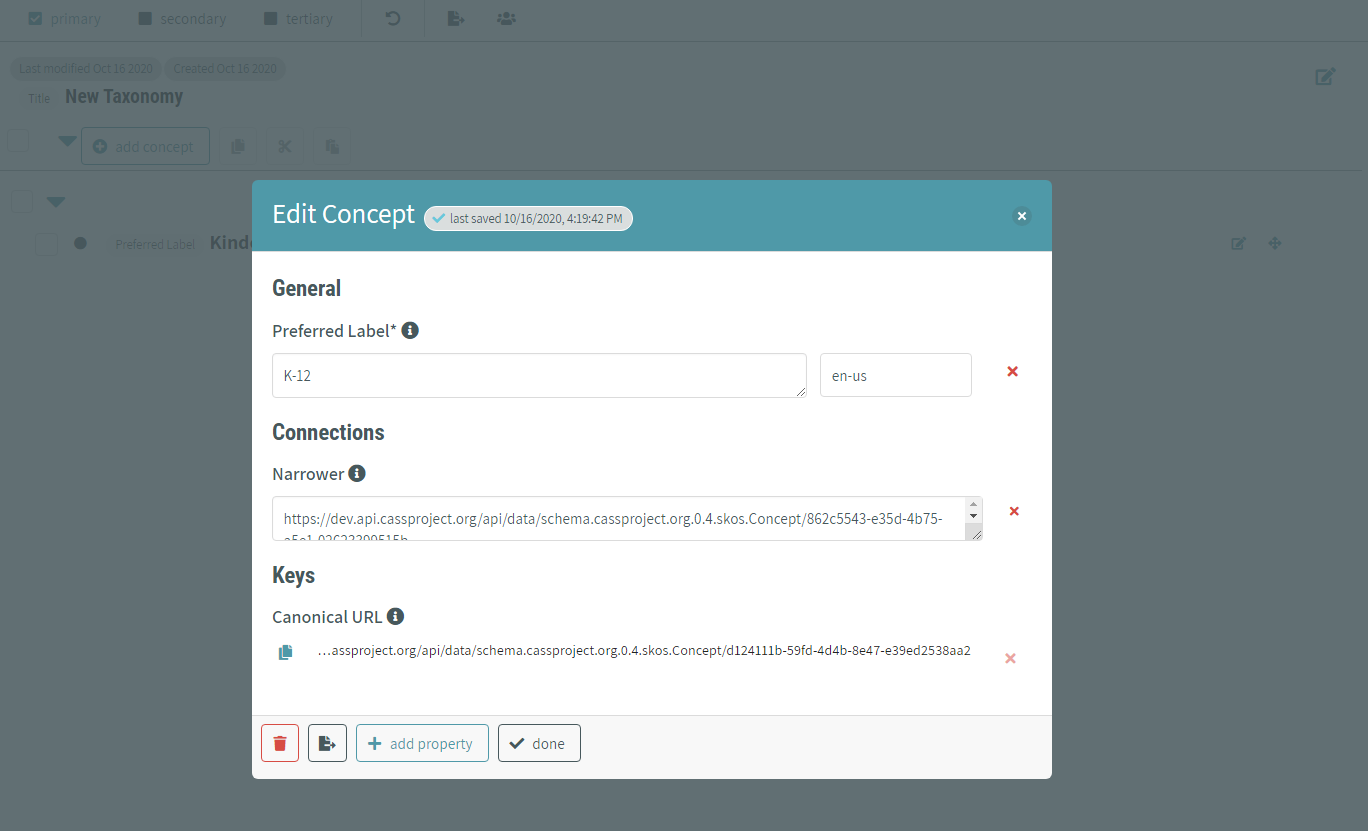
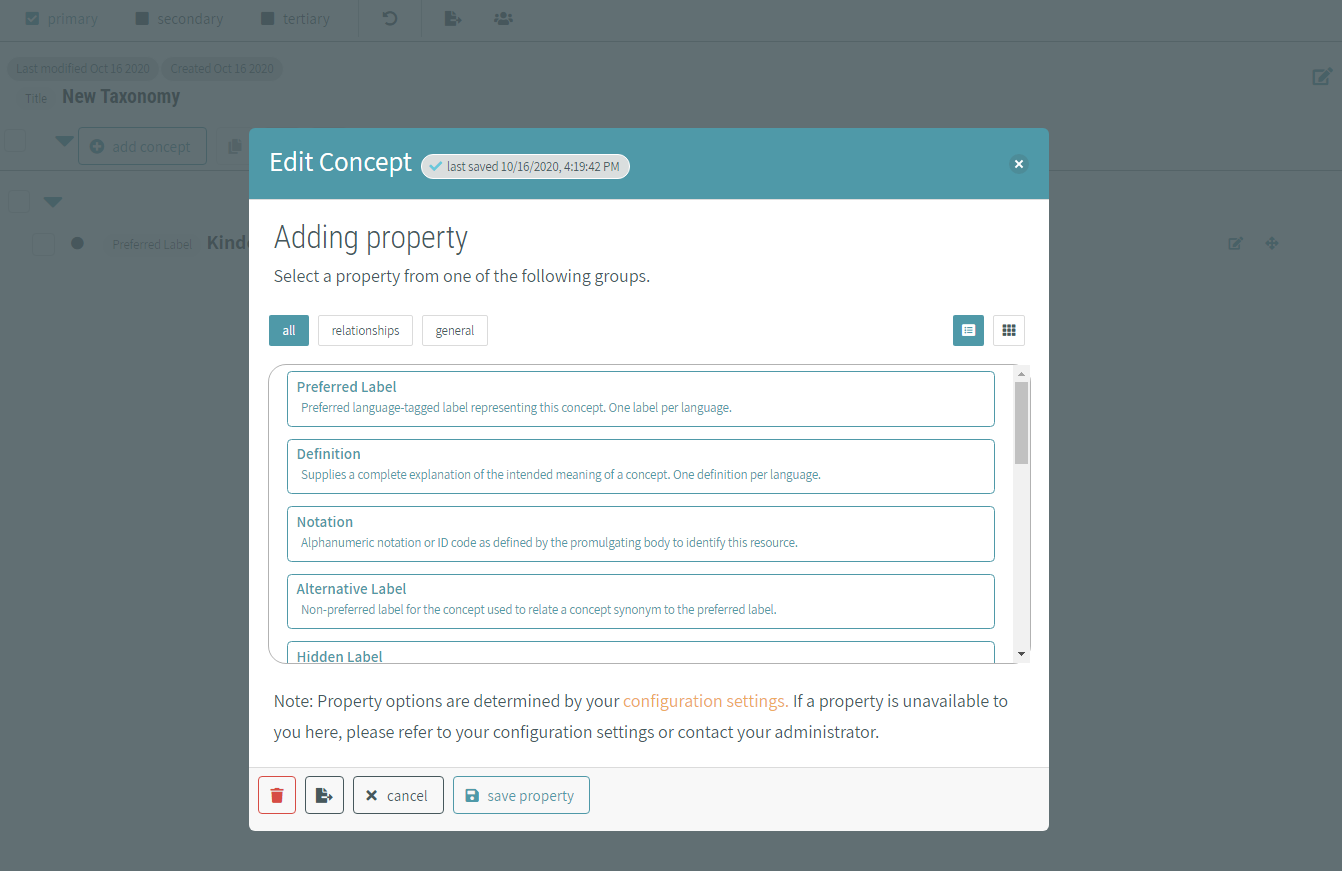
new properties can be added to the object from here too by clicking the add property button at the bottom of the modal. the interface will see a list of properties that are available to add. Select the property is intended to add, enter in the value, and click save property.
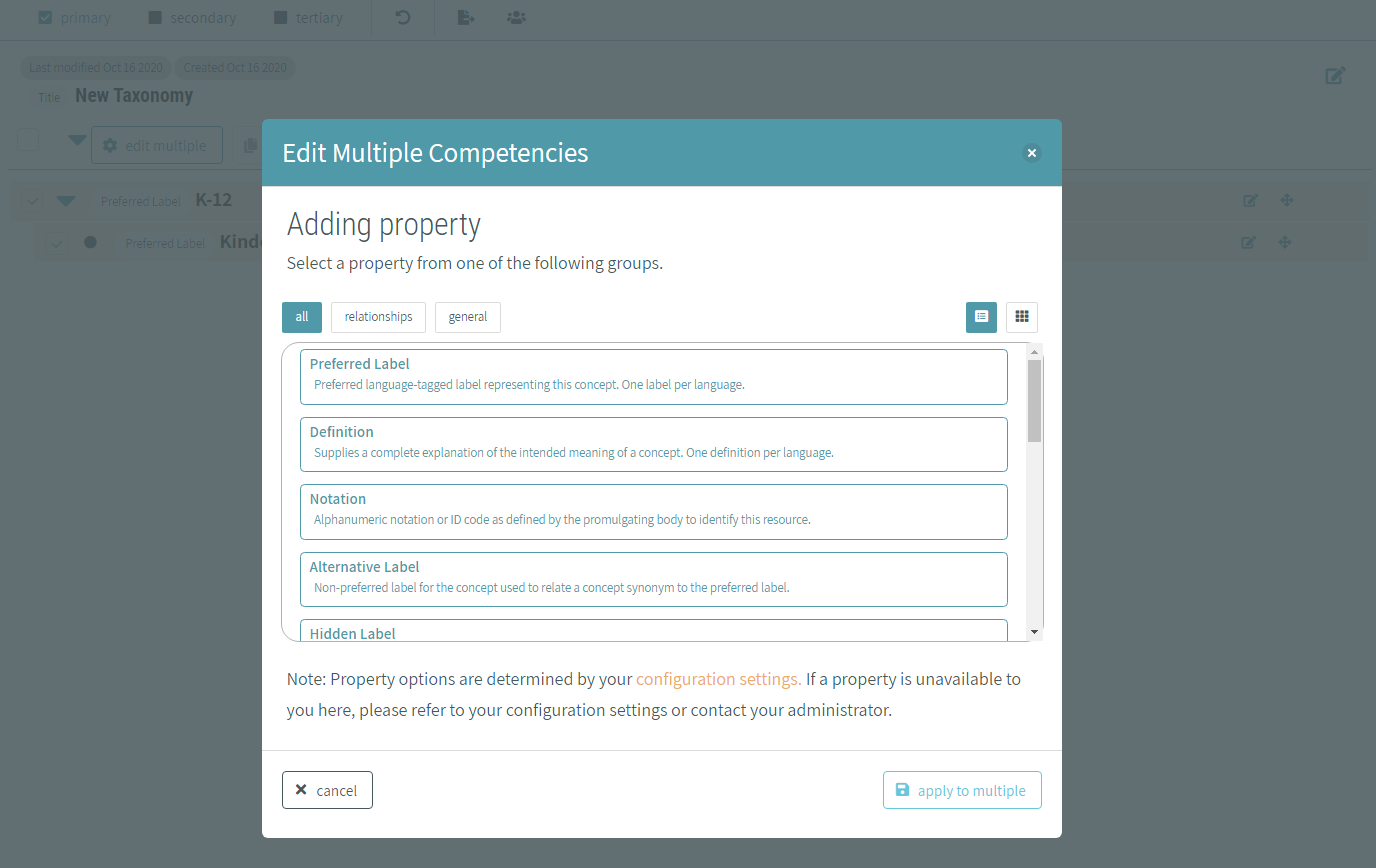
If to add a property is intended to add to multiple concepts, use the checkboxes to select the concepts the user want to edit and click edit multiple.
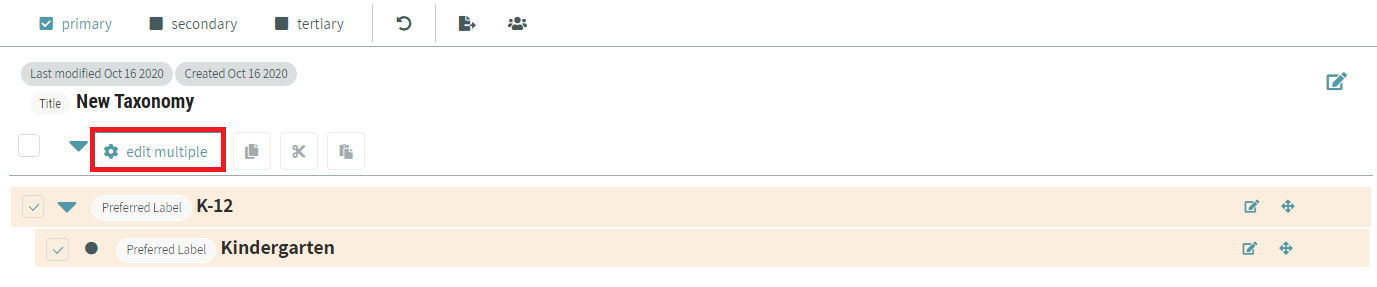
the interface will see a list of properties that are available to add. Select the property is intended to add, enter in the value, and click apply to multiple.
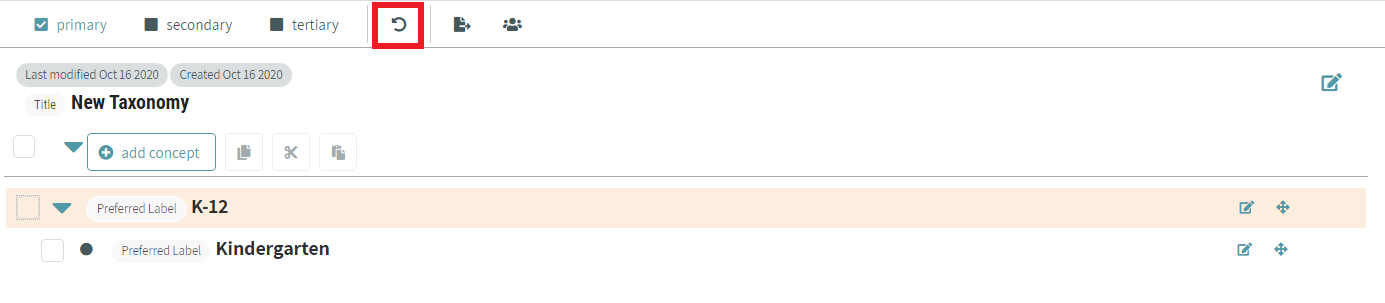
If the user make a mistake while editing, click the undo button in the bar at the top of the page to revert the most recent changes.
# Changing Concept Hierarchy
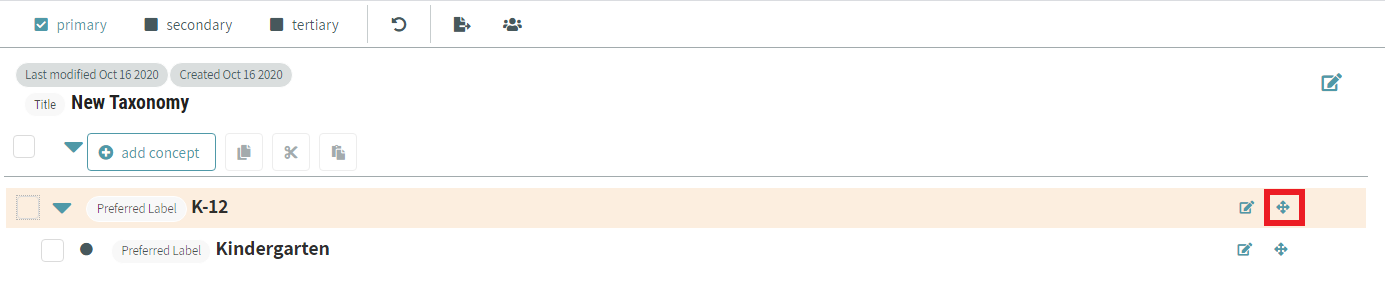
There are several ways to move concepts around in the hierarchy. drag-and-drop is supported for the concept to the spot is intended to move it to by hovering over the concept. The icon highlighted in the image below will appear and The system allows click on it, hold down, and drag the concept to the appropriate position.
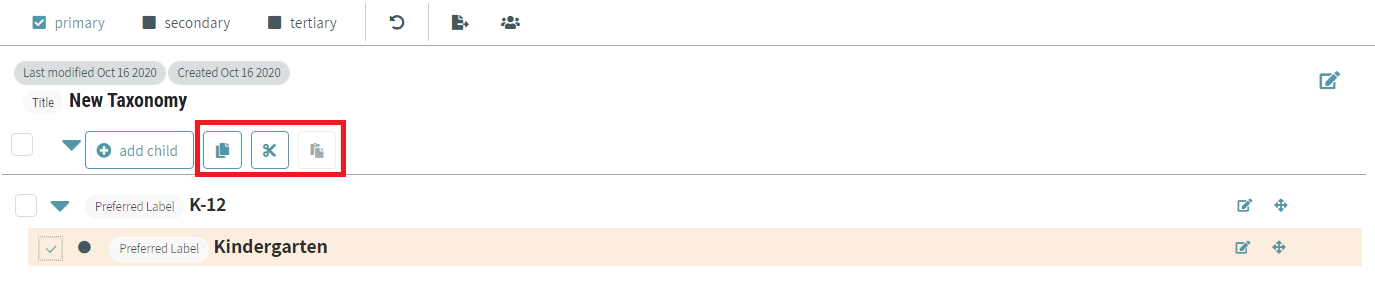
The system allows also move a concept by selecting its checkbox. Click the cut or copy icon highlighted in red in the image below, select another concept, and click the paste icon.
With one concept selected, The system allows move it with keyboard commands as well. The system allows cut, copy and paste, or use the arrow keys to move it to the position the user want.
- Tab - Switch focus between elements on the page
- Space - Select the element currently in focus
- Shift + X - Cut competency
- Shift + C - Cut and copy competency
- Shift + V - Drop competency
- Shift + ↑, Shift + ↓ - Move concept up and down in the list
- Shift + ←, Shift + → - Move concept indent and outdent in the list
# Managing Users and Sharing a Taxonomy
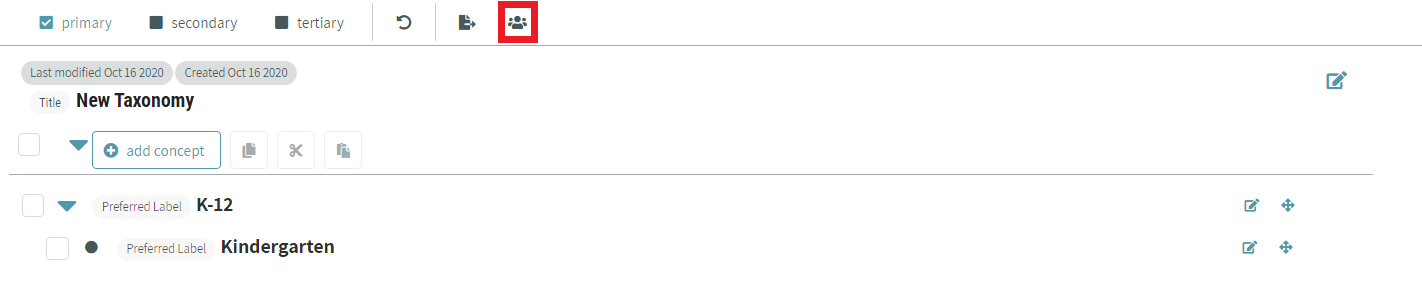
To control who can view and edit a taxonomy the user own, click the manage users button highlighted in red in the image below.
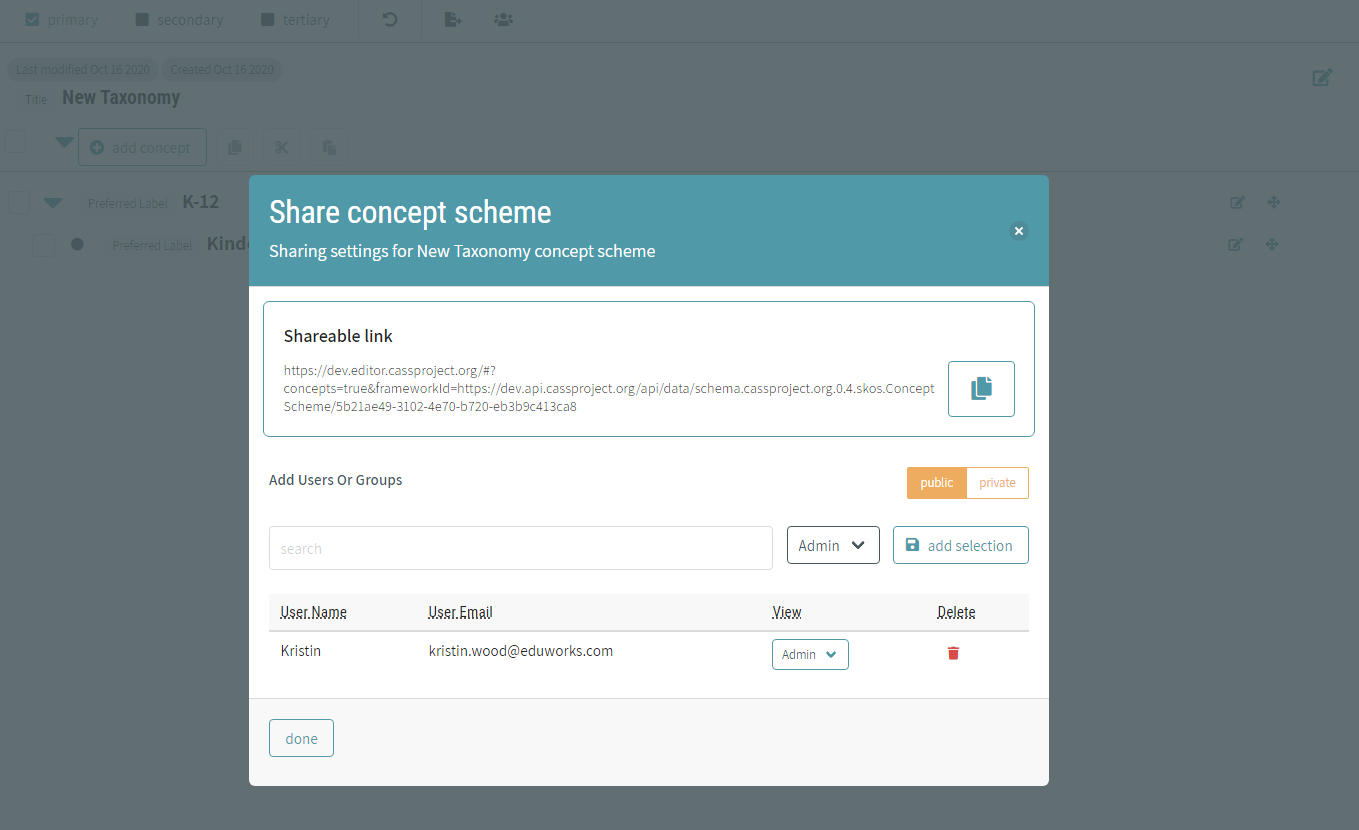
The system allows see who the admins and viewers of the taxonomy are, and add or remove users and organizations. This view also has a shareable link to the taxonomy that The system allows copy to the clipboard and give to someone else.
# Viewing Taxonomies and Concepts in More Detail
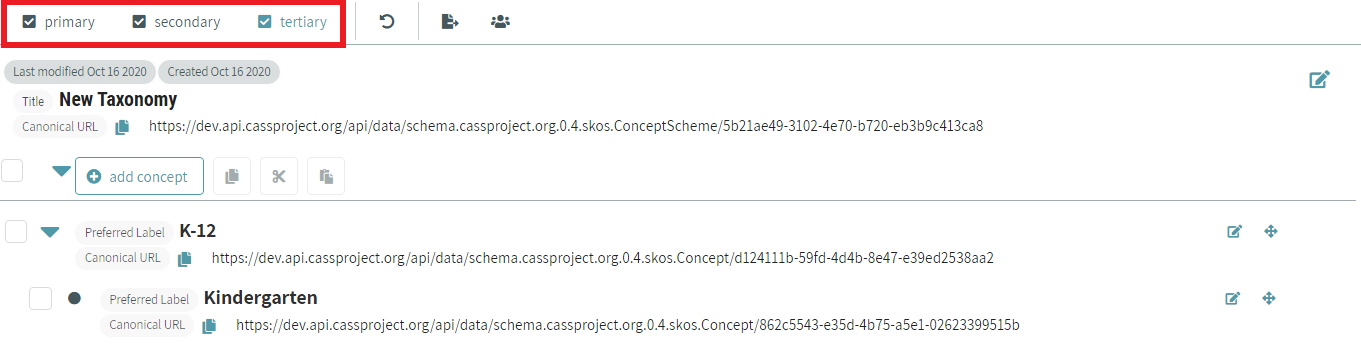
By default, only primary properties are shown on a taxonomy and concepts. To see some additional properties, click secondary in the panel at the top of the screen. This will show all primary and secondary properties that have values. To see all properties that have values, click on tertiary.
# Exporting a Taxonomy
Once has been created or imported a new taxonomy, exporting the taxonomy is a relatively simple process. Users must first view their taxonomies through the taxonomy tab in the CaSS Authoring Tool and select the desired taxonomy to be exported. Once the taxonomy is selected, users can select the export button at the top of the screen and will be prompted to choose their desired file format to export that taxonomy.

Users will be prompted with the window displayed below and can select their desired file format from the options provided in the dropdown menu.
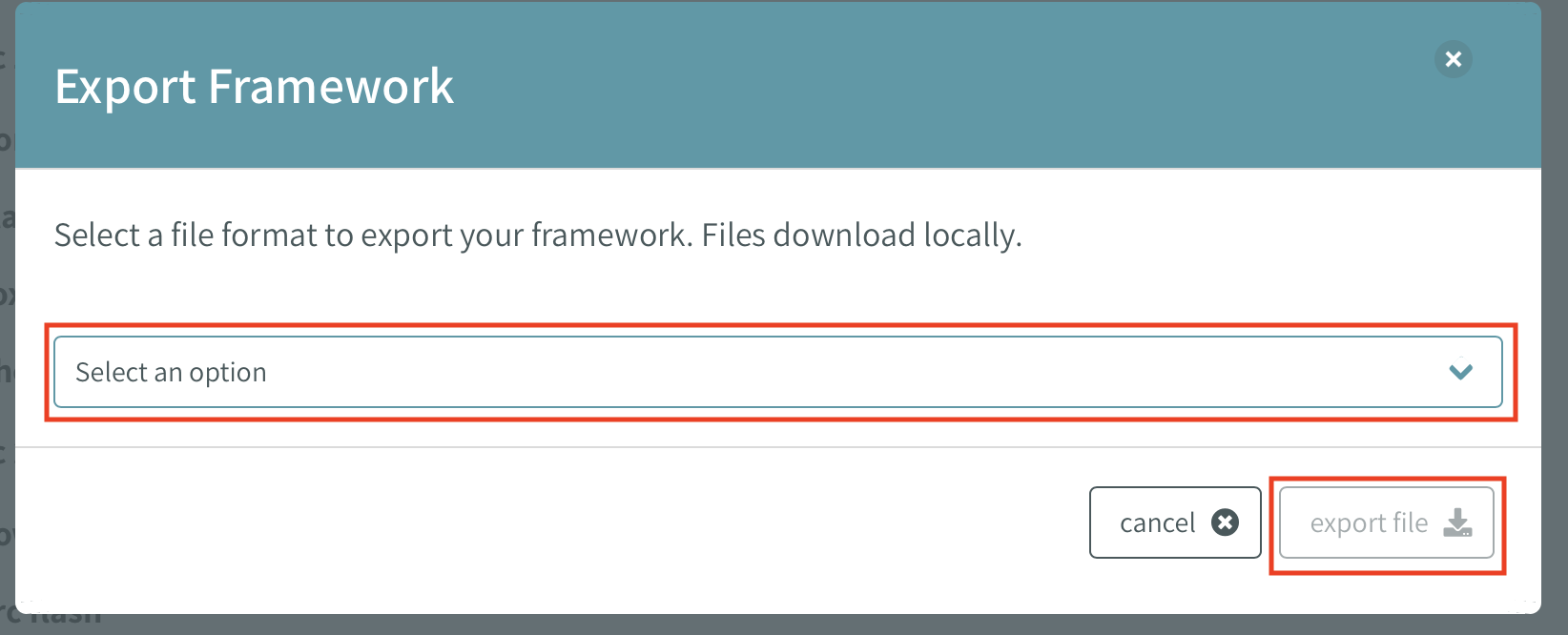
Once the desired format is selected users can select the export file button at the bottom right corner of the window and the taxonomy will be downloaded to the computer or opened in a new tab of the browser.
# Importing a Taxonomy
The process of importing a new taxonomy is also relatively simple. From the taxonomy tab on the sidebar, users have the ability to view all existing taxonomies within the system. At the top of the page is a list of options which allow users to import and create new taxonomies into the database of existing taxonomies.

After clicking the import taxonomy button users will be prompted with a new page where they have the ability to select the source of the taxonomy they are trying to import. Users have the ability to upload csv and json files. Examples and templates are linked from the panel on the right side of the screen. Users can drag the taxonomy into the dotted window displayed below.
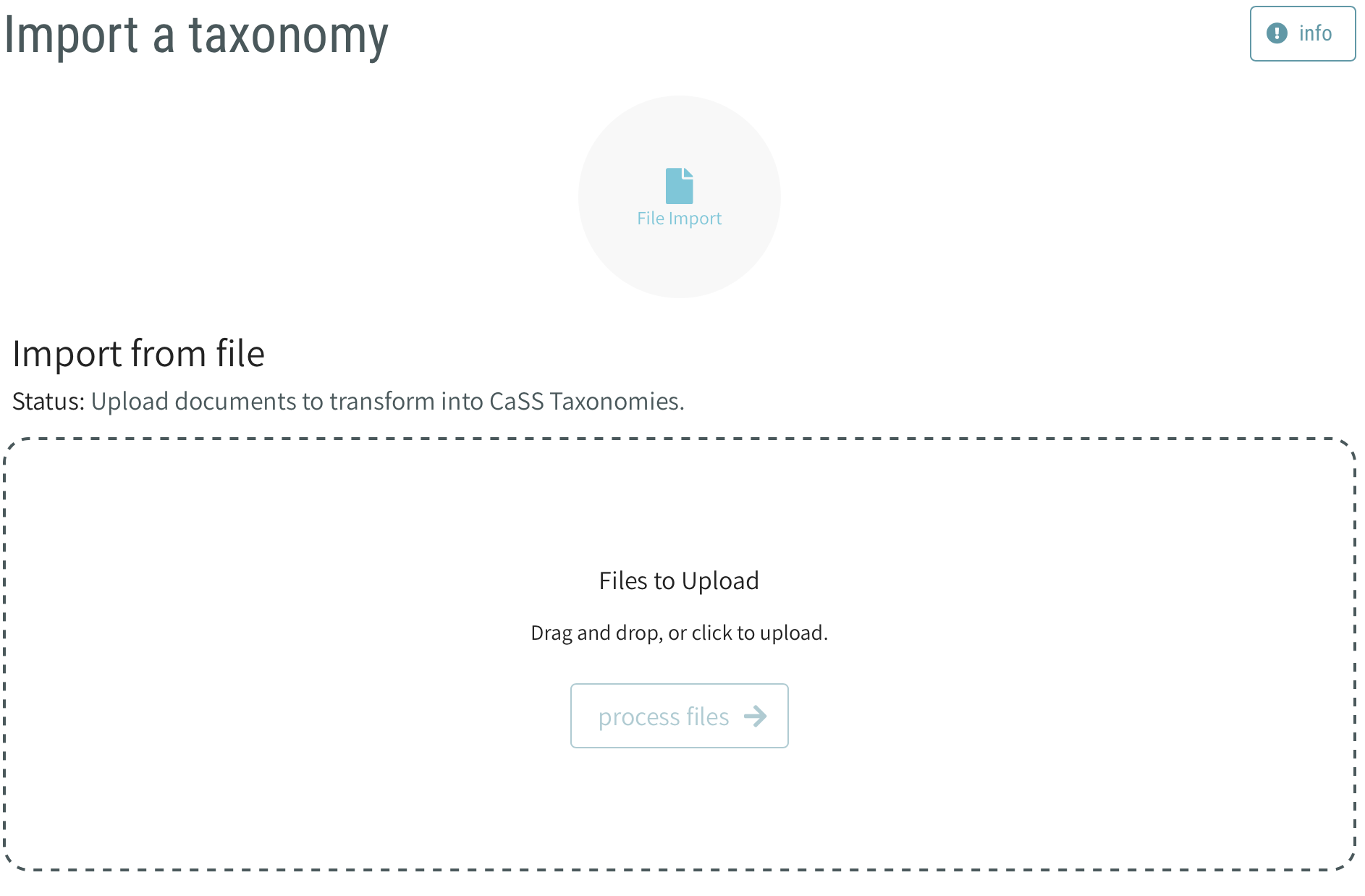
Once imported users can select the process files button and the desired taxonomy will be imported into the the CaSS Authoring Tool database.