
# Creating and Editing
Assertion management is only available to logged in users, ensure it is logged in to the application before continuing.
# Enabling Assertion Management
Open any framework and the user should be presented with a manage assertions button in the top toolbar

To return to the framework editing mode, simply press the stop managing assertions button in the top toolbar

# Choosing a Subject
The system allows choose to make assertions about yourself, or another user in the system. In order to change the subject of the assertions, click the myself button and select a new user from the resulting dialog.

# Creating an Assertion
Once in the assertion management mode, the competencies in the framework will display new controls to create either a positive or negative assertion, indicating that a user can or cannot perform the competency respectively.
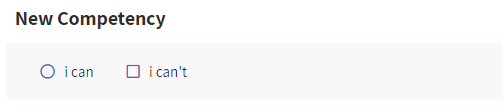
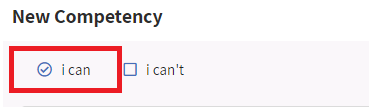
Clicking the I can button will generate a positive assertion for that competency and display an input field allowing the user to provide evidence in the form of text or a link to support the assertion. Press enter on the keyboard after entering the evidence into the input field to attach it to the assertion.

The evidence will appear in a section underneath the input field, along with a button to delete that evidence if desired.

# Deleting an Assertion
To delete an assertion, simply click the same button that was used to create the assertion. In this case, the I can button.
# Adding a Badge
additions can be made a badge to a positive assertion by clicking the add badge button.

This will generate a url for the badge that can be viewed by clicking the view badge button and then shared.
