
# Finding and Editing
Directories can be used to orgranize competency frameworks and resources into collections. A directory can contain subdirectories, frameworks, and resources. Items can be copied or moved into and out-of directories.
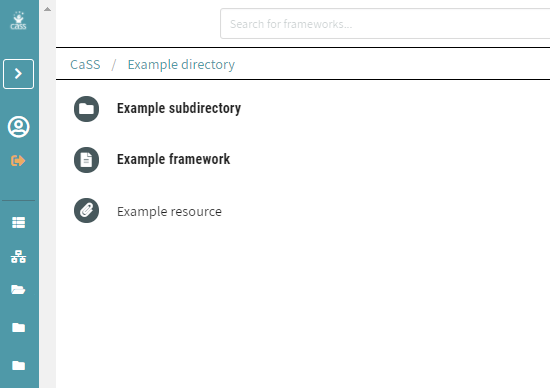
# Navigating to a Directory
Directories that the user have created or the user have access to can be viewed by clicking on a Directory icon on the left side bar highlighted by the red box in the image below. If the user have access to multiple directories, then the system will see multiple directory icons (one for each created directory).
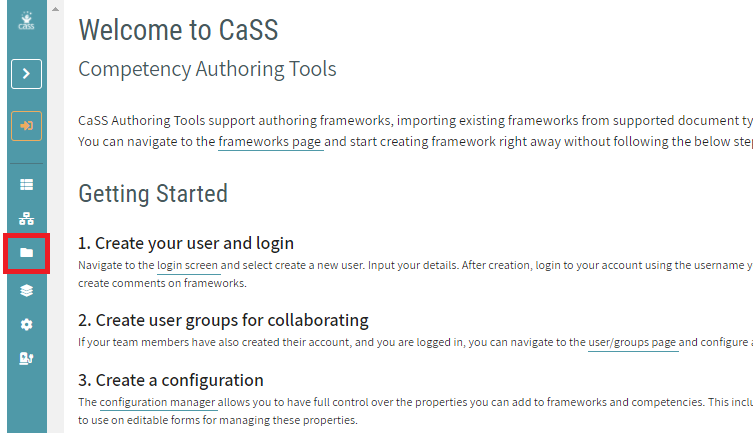
Click on a Directory icon to open the directory. Once opened, the system will see the contents of the selected directory. If the directory does not show any items listed, then it is empty.
# Navigating with the Directory Path
The path for the selected directory is located in the breadcrumb navigation directly above the contents of the directory.
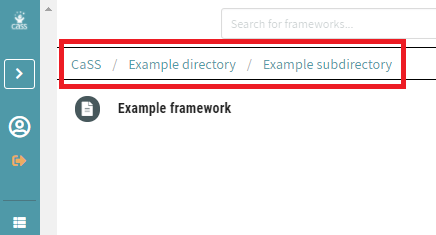
Click on a directory or subdirectory name in the path to show items within that directory or subdirectory. If the directory does not show any items listed, then it is empty.
Click on CaSS in the breadcrumb navigation to show all available items. This list includes:
- All directories, subdirectories, frameworks, and resources within public directories
- Directories that the user have created
- Any other directories that the user have access to

# Navigating to a Directory from a Framework
If a framework exists within a directory, then a link to its parent directory is available when viewing the framework. To view the directory that a framework is in, click on go to directory in the top right corner as outlined in red below.

# Opening an Item
- Double-click on any item within a directory (including another directory) to open that item
- Opening a Directory will show the contents of the directory
- Opening a Framework will show the framework. This navigates away from the Directory page
- Opening a Resource will open the URL of the resource in the browser
# Viewing an Item in More Detail
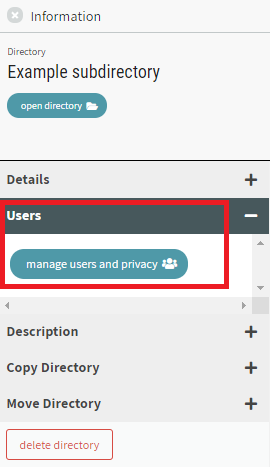
Single-click on any item name within a directory (including another directory) to view an Information panel with more details and options for that item.
The Information about the item will show on a side panel to the right of the directory list.
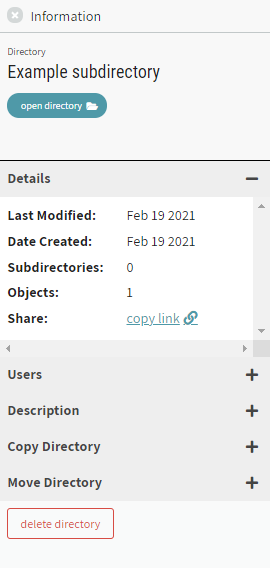
The type of item (Directory, Framework, or Resource) along with the item name is shown in the top section of the Information panel. The type of item being viewed and its properties determines the contents available within the information panel.
If the type of item is a Competency, then the details and options within the Information panel will refer to the Framework that the Competency is within.
If the item is not currently open, then a button providing the option to open that item is available under the name of the item.
Not all options listed below are available on all items.
Details (only available for directories and frameworks)
- Last Modified - The date that this item was last modified
- Date Created - The original date that this item was created. If this item has been copied from another location, then the date created will reflect the date that the copy was created
- Subdirectories - The number of subdirectories that this directory contains (only available for directories)
- Objects - The number of frameworks and resources that this directory contains (only available for directories)
- Parent Directory - A link to navigate to the parent of this directory (only available for subdirectories)
- Share - Click on "copy link" and the link to this item will be copied to the clipboard

Users - Click on "manage users and privacy" and a window dialogue will allow the user to view and control access to this item.
Properties - Available properties on this item, including name and URL (if a resource). Includes option to edit properties if editable
Description - A description for the item if one has been provided
Copy - Includes a list of available directories that this item can be copied to
Move - Includes a list of available directories that this item can be moved to
Delete directory - Click on the "delete directory" button to delete the currently selected directory. the system will need to type in the name of the directory when prompted in order to avoid accidental deletion.
WARNING
This action is irreversible. Deleting this directory will delete all of its contents and make it unavailable to others who might be using it.
# Searching for Items from the Directory View
Use the search bar at the top of the page to type in a search term and then press ENTER.
Items that contain the search term and are within the currently open directory (and its subdirectories) will be listed under Available Items. This included Directories, Frameworks, Resources, and Competencies within Frameworks.
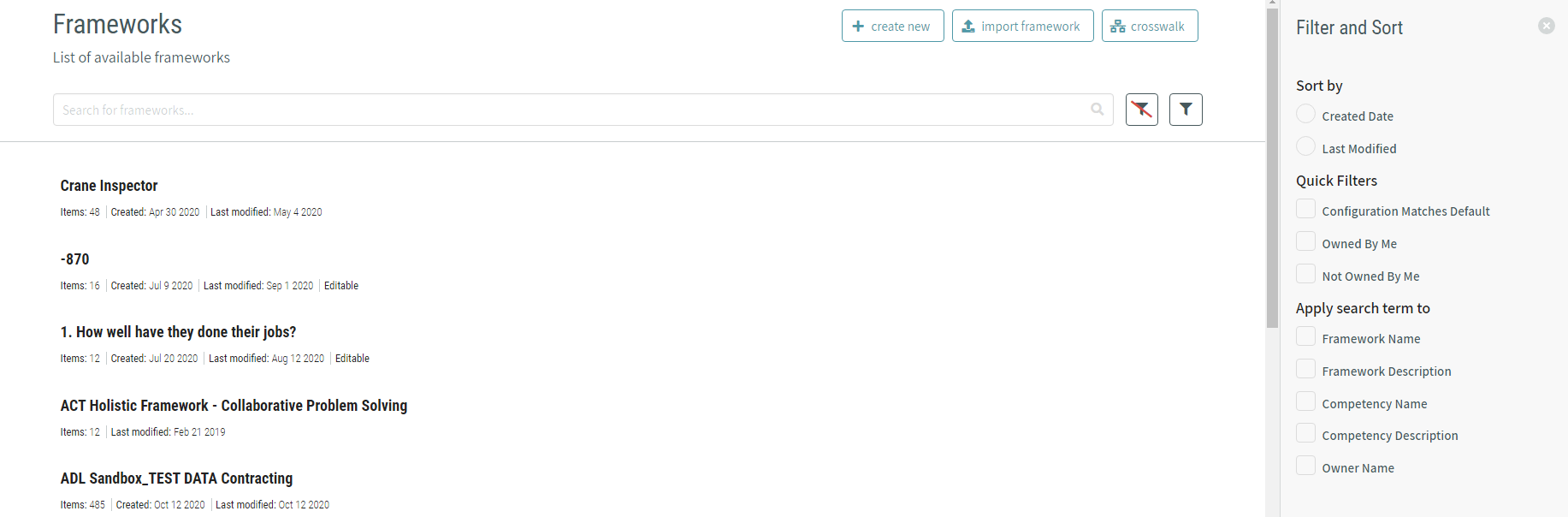
the list can be sorted and filtered of items by clicking the filter button next to the search bar. The button next to it clears any filters has been applied.

The filter button will open up a side panel to the right of the Available items with options to sort, filter, and apply the search term to various fields.
# Making Changes to Directories
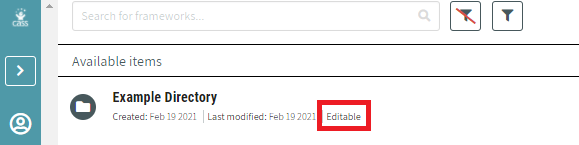
The system allows only make changes to a directory If an owner (listed as Admin) for the directory. To confirm that the properties can be edited for a directory, click on CaSS in the breadcrumb navigation to show all available items. If the directory has the label Editable beneath it, then The system allows make changes to it.
# Creating a New Directory
To create a new directory (not a subdirectory):
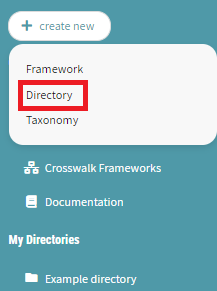
- Click on the create new button in the left menu under the login
- Select Directory from the dropdown
- A field appears for the user to enter in the name of the new directory.
- Enter the name and click create
- A new directory is created and the Directory Path is updated to reflect the location of the new directory.
# Editing Properties of a Directory
To rename a directory or edit other properties:
- Open the directory
- Click on the name of the directory in the Directory Path to show its Information on the right side panel.
- Within the Information panel, click on Properties and click edit
- A dialogue window opens with the name and properties of the directory.
- Make the desired changes to the directory and click save.
# Adding Items
The system allows only add items to a directory If an owner (listed as Admin) for the directory.
To add an item to a directory:
- Open the directory
- Click on the add new button in the top right corner of the page
A directory can contain Subdirectories, Frameworks, and Resources.

# Adding a New Framework
To create a new Framework within the current Directory:
- Click on add Framework in the dropdown menu
- A dialogue window opens to create and add properties to a new Framework
- Click Done when finished and the framework will be created and opened
- Click go to directory at the top of the page
- the system will return to the parent directory where the framework has been created
- the system will see the new framework in the list of directory contents
# Adding a New Subdirectory
- click on Sub directory in the dropdown menu
- A dialogue window opens to create a new directory
- Enter the name of the new directory
- Click create
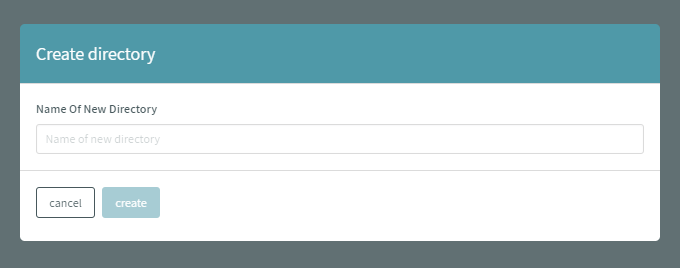
A new subdirectory is created and the Directory Path is updated to reflect the location of the new directory.
# Adding a New Resource
- Click on Resource in the dropdown menu
- A dialogue window opens to create a new resource
- Enter the name + URL of the new resource
- Click create

A new resource is created and the contents of the Directory is updated to relfect the additional resource.
# Making Changes to Items
The system allows only make changes to an item If an owner (listed as Admin) for the item.
# Editing Properties of a Resource
To rename an item or edit other properties:
- Click on the item in the list of directory contents to show its Information on the right side panel
- Within the Information panel, click on Properties
- Click edit
- A dialogue window opens with the name and properties of the item
- Make the desired changes to the item
- Click save
# Copying Items
To create a copy of an item in a directory:
- Click on the name of the item to be copied to show its Information on the right side panel
- Within the Information panel, expand the Copy section.
- Each available directory that the currently selected item can be copied into is listed with a corresponding button.
- Click on the copy here button to make a copy of the item into that directory
- The name of the new copy will be prepended with "Copy of "
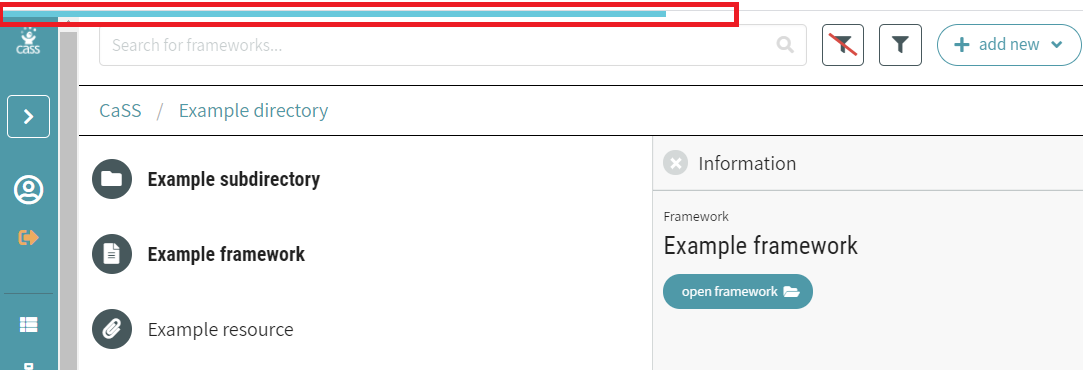
- A progress bar at the top of the main window will move from left to right to indicate the progress of the copy
- The copy of the item will be in the new directory
- The original item will remain in its original location.
# Moving Items
The system allows only move items to a directory If an owner (listed as Admin) for the directory and for the item to be moved.
To move an item to a directory:
- Click on the name of the item to be moved to show its Information on the right side panel.
- Within the Information panel, expand the Move section.
- Each available directory that the currently selected item can be moved to is listed with a corresponding button
- Click on the move here button to move the item into that directory
- A progress bar at the top of the main window will move from left to right to indicate the progress of the move
- The item will now be in the new directory location only.
# Remove Item from Directory
The system allows only remove items from a directory If an owner (listed as Admin) for the directory and for the item to be removed.
To remove an item from a directory:
- Click on the name of the item to be removed to show its Information on the right side panel
- Within the Information panel, expand the Move section
- At the bottom of the list of directories in the Move section is an option to remove the item at its location inside the current directory
- Click on the link to Remove from directory
- A progress bar at the top of the main window will move from left to right to indicate the progress of the removal
- The item will no longer reside in the directory
# Deleting a Directory
The system allows only delete a directory If an owner (listed as Admin) for the directory.
To delete a directory:
- Click on the name of the directory to be deleted to show its Information on the right side panel.
- At the bottom of the Information panel, click on the delete directory button to delete the currently selected directory
- For confirmation, the system will need to type in the name of the directory when prompted
WARNING
This action is irreversible. Deleting this directory will delete all of its contents and make it unavailable to others who might be using it.
