# Finding and Editing
Competency frameworks can be viewed and managed in CaSS Authoring Tools by navigating to the Frameworks page. The Frameworks page can be visited by clicking on the Frameworks button on the left sidebar highlighted by the red box in the image below.
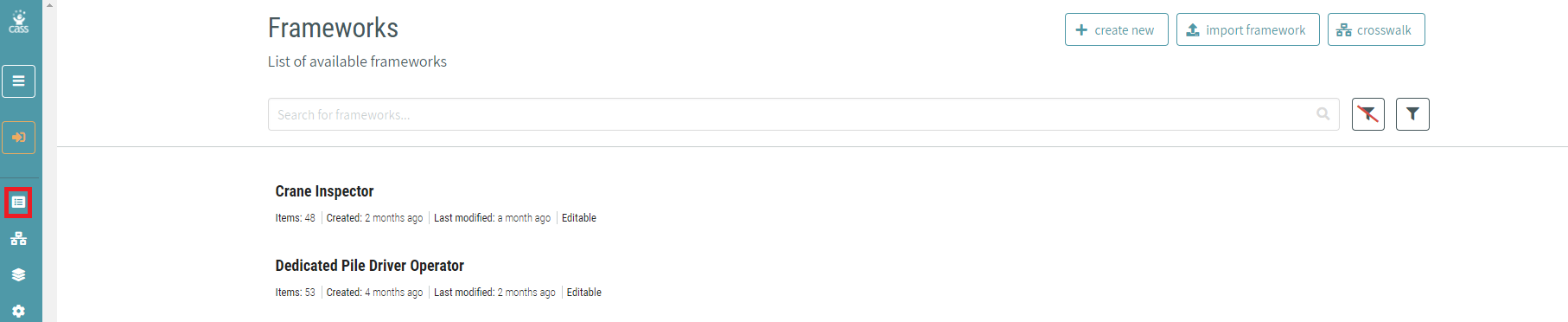
On this page, frameworks are shown with their names in bold. Beneath the name, The system allows see how many competencies are in the framework, when it was created and last modified. If the user have permission to edit the framework, it will say “Editable”.
# Sorting and Filtering Frameworks
the list can be sorted and filtered of frameworks by clicking the filter button next to the search bar. The button next to it clears any filters has been applied.

The filter button will open up a side panel to the right of the framework list with options to sort, filter, and apply the search term to various fields.
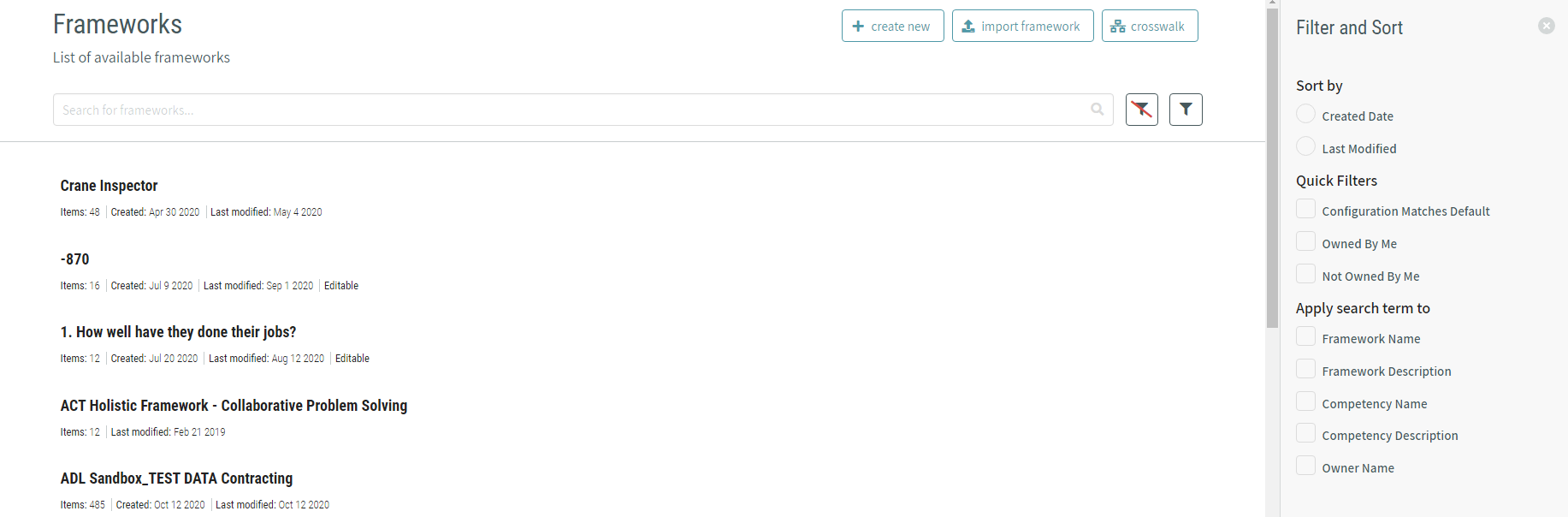
The filter options under Apply search term to are available based on the type of each field wtihin the current configuration (either browser default or instance default).
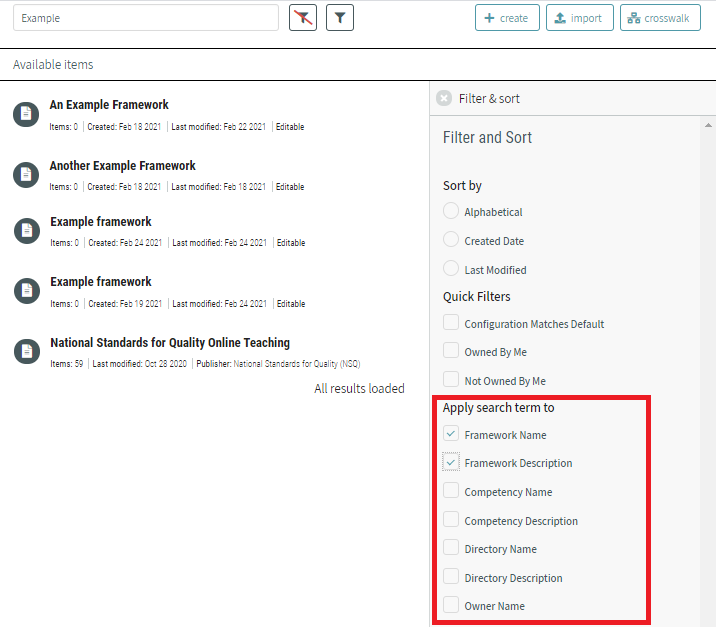
Fields for frameworks, competencies, and directories that are of the type Text or Lang-String are made available to filter on when searching. These settings are applied when creating or editing fields in Configuration.
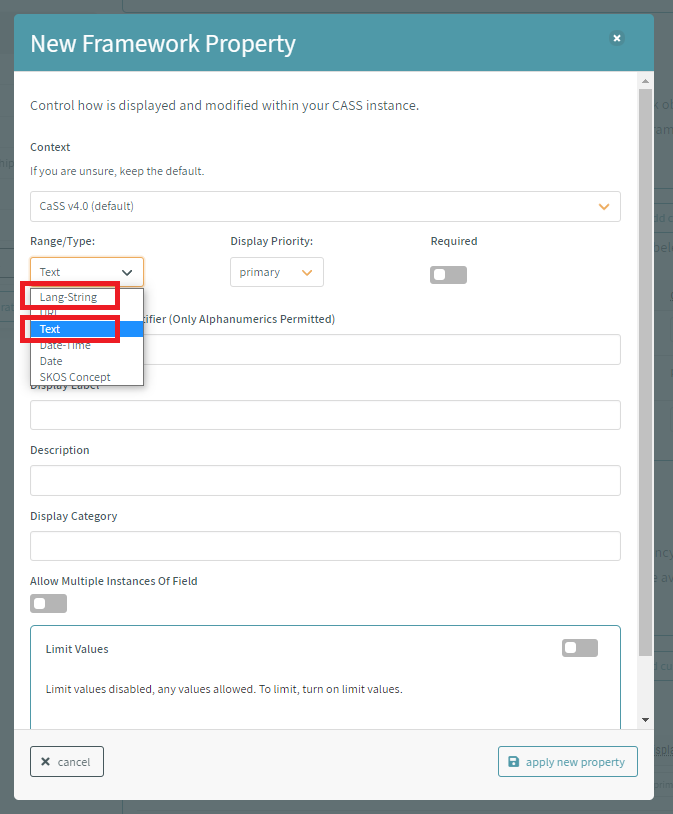
(Advanced) The configuration settings of ceasnDataFields=true or tlaProfile=true override browser default or instance default configurations when listing available fields to filter on.
# Opening a Framework
Double-click on a framework to open the framework.
# Viewing a Framework in More Detail
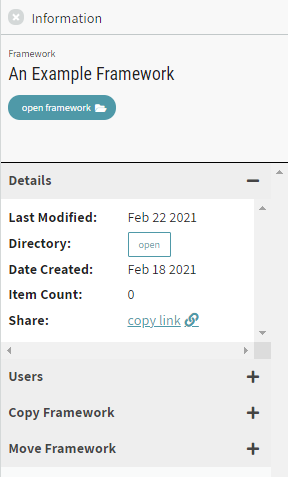
Single-click on a framework to view an Information panel with more details and options for the framework.
The Information about the framework will show on a side panel to the right of the directory list.
# Creating a New Competency Framework
A new competency framework can be created within CaSS Authoring Tools by pressing the Create New button at the top of the framework management page.

When the user click on the Create New button to create a new competency framework, the system will be required to enter a Framework Name and Framework description to the new competency framework. Additional properties can be added to a competency framework that are controlled by CaSS Authoring Tools’ configuration settings. For more information about configuration settings and managing the properties of competency frameworks, see the Custom Framework Properties section of this user guide under Competency Framework and Competency Configuration.
# Adding Competencies
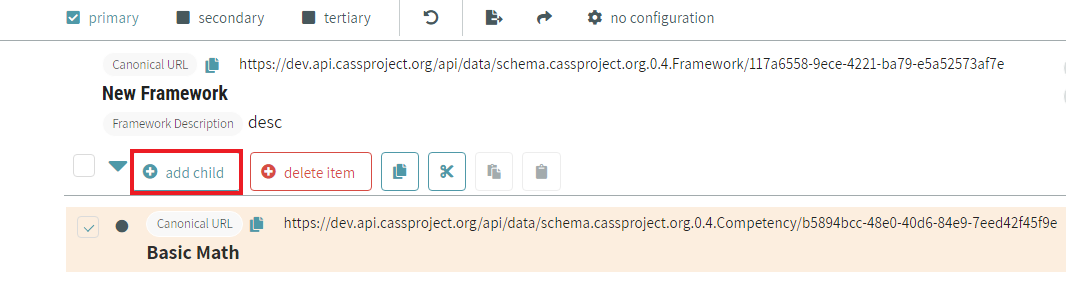
To add competencies to the framework, click the add competency button below the framework details.

A hierarchy can be constructed of competencies by checking the box to the left of a competency. The add competency button text will change to add child, which The system allows click to place a competency underneath the one has been checked.
# Editing Frameworks and Competencies
To edit a single competency or framework, hover over the item the user want to edit and an edit icon will appear. Click the icon highlighted in red in the image below.

A modal will appear and the properties can be edited for the framework or competency’s properties. This modal also allows the user to delete the competency or framework, remove a competency from the current framework without deleting it, and export the object. Click done when has been finished making changes.
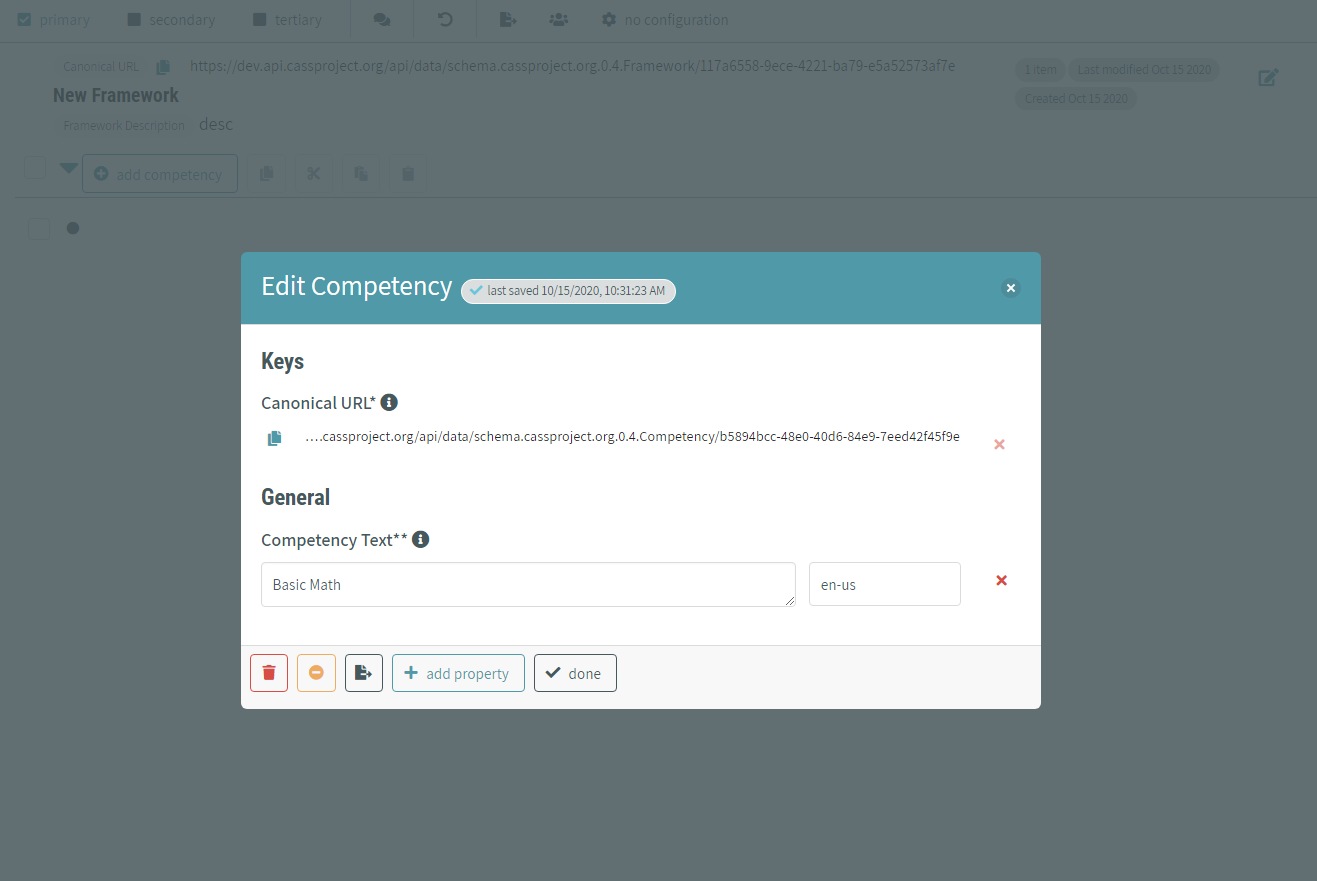
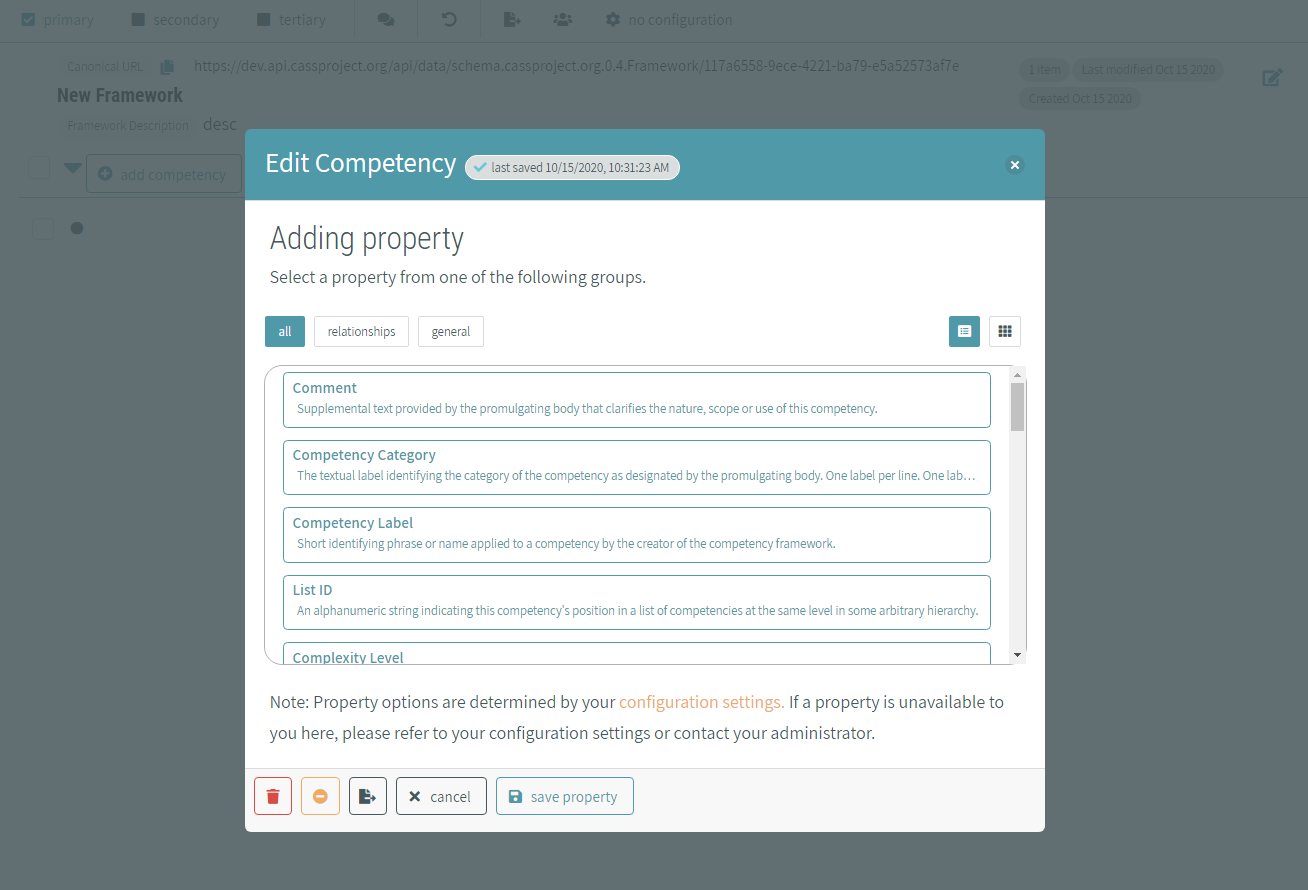
new properties can be added to the object from here too by clicking the add property button at the bottom of the modal. the interface will see a list of properties that are available to add, determined by the configuration is using. Select the property is intended to add, enter in the value, and click save property.
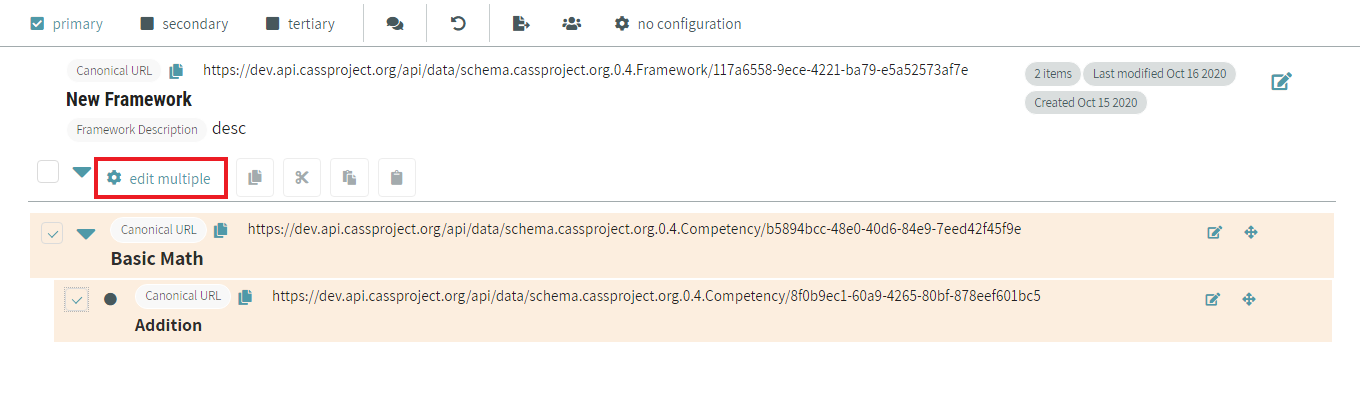
If to add a property is intended to add to multiple competencies, use the checkboxes to select the competencies the user want to edit and click edit multiple.
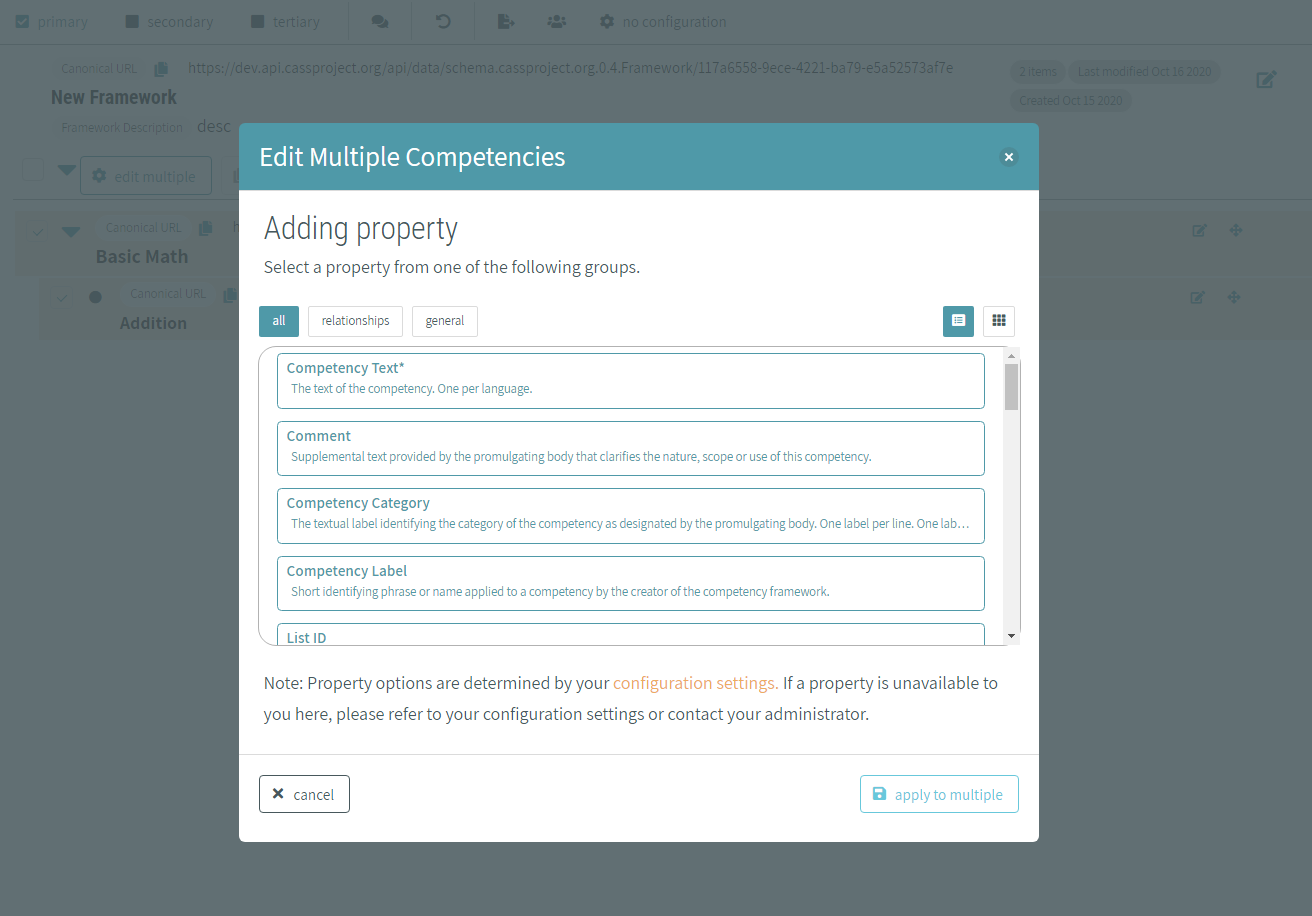
the interface will see a list of properties that are available to add, determined by the configuration is using. Select the property is intended to add, enter the value, and click apply to multiple.
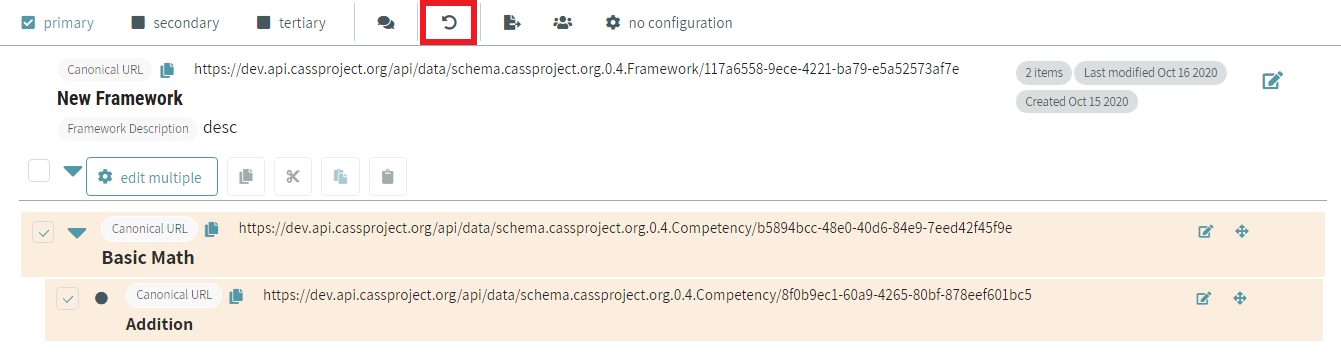
If the user make a mistake while editing, click the undo button in the bar at the top of the page to revert the most recent changes.
# Changing Competency Hierarchy
There are several ways to move competencies around in the hierarchy. drag-and-drop is supported for the competency to the spot is intended to move it to by hovering over the competency. The icon highlighted in the image below will appear and The system allows click on it, hold down, and drag the competency to the appropriate position.

The system allows also move a competency by selecting its checkbox. Click the cut or copy icon highlighted in red in the image below, select another competency, and click the paste icon.
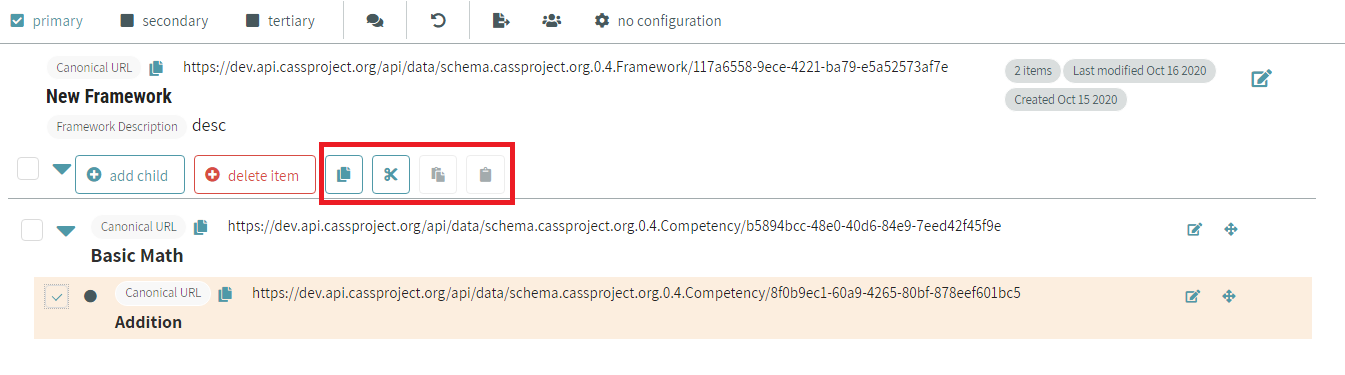
With one competency selected, The system allows move it with keyboard commands as well. The system allows cut, copy and paste, or use the arrow keys to move it to the position the user want.
- Tab - Switch focus between elements on the page
- Space - Select the element currently in focus
- Shift + X - Cut competency
- Shift + C - Cut and copy competency
- Shift + V - Drop competency
- Shift + ↑, Shift + ↓ - Move competency up/down in the list.
- Shift + ←, Shift + → - Move competency indent/outdent in the list
# Setting a Configuration
Configurations control which properties the properties can be edited for and display within a particular framework, and what types of values they can have. If youdon’t specify a configuration for the framework, the browser, instance, or CaSS default will control the properties. If the user want a framework to have a different configuration, The system allows set one by clicking the framework configuration button.
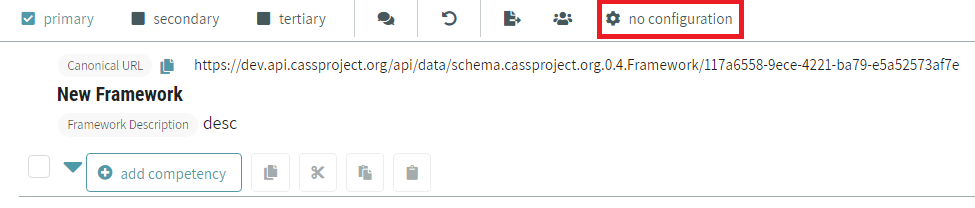
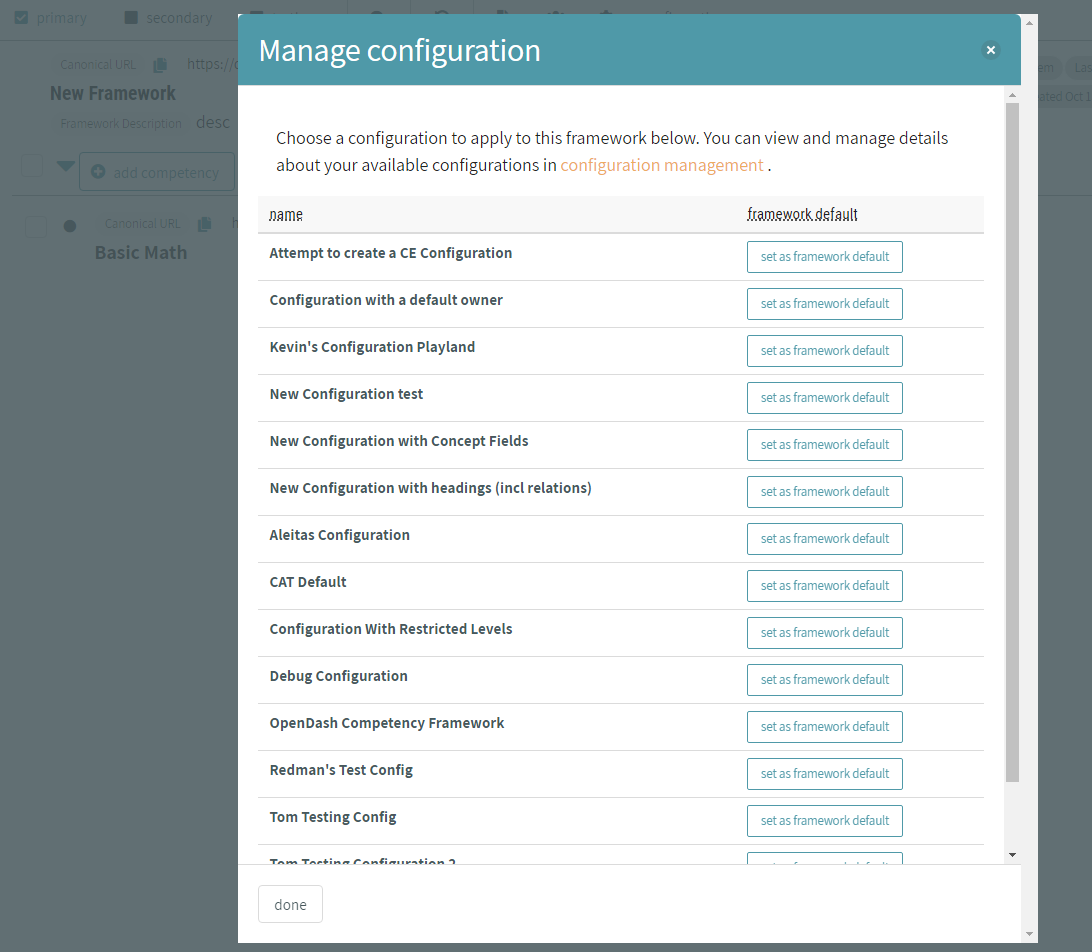
This will open up a panel with a list of available configurations to apply. Click set as framework default next to the configuration the user want.
# Managing Users and Sharing a Framework
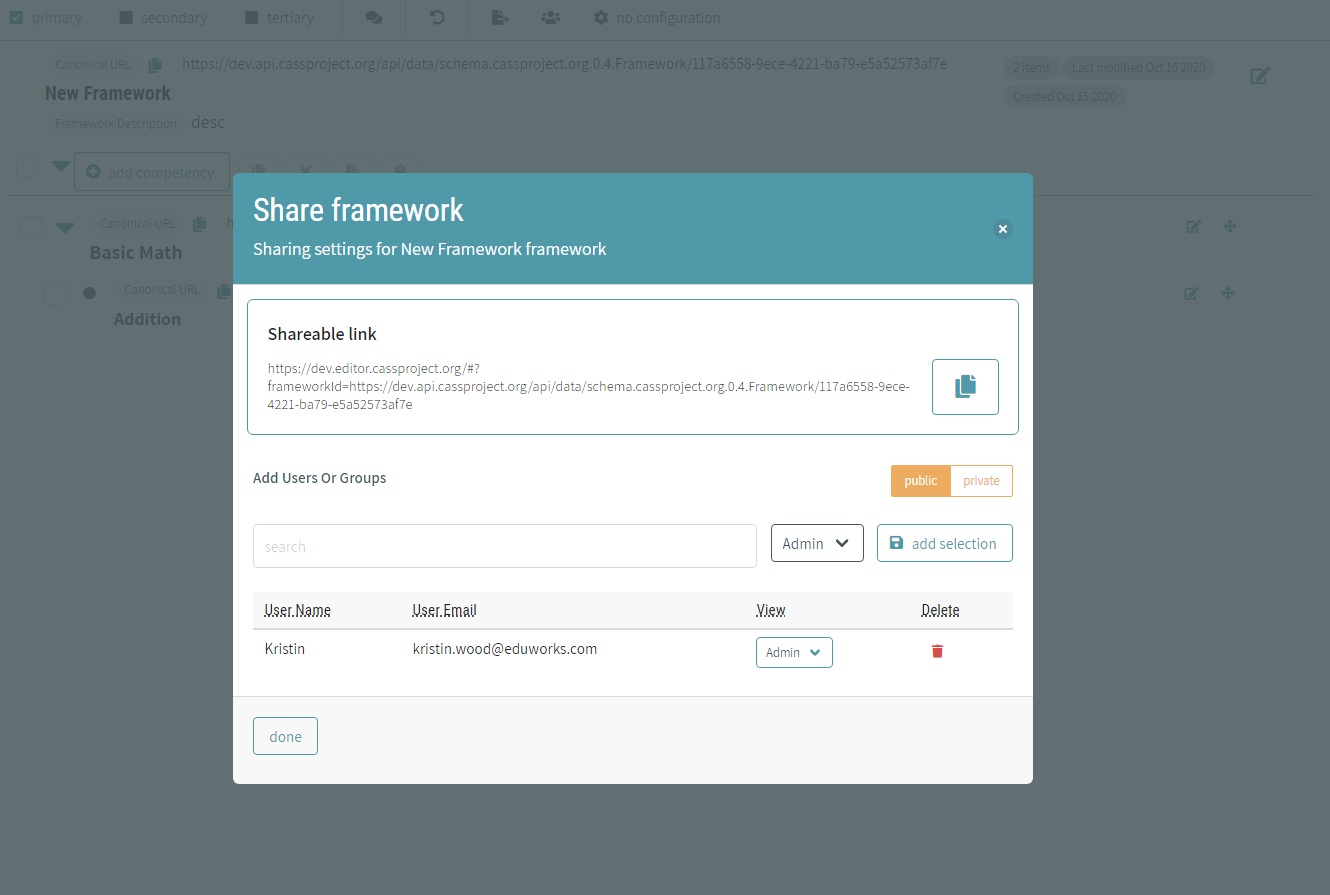
To control who can view and edit a framework the user own, click the manage users button highlighted in red in the image below.
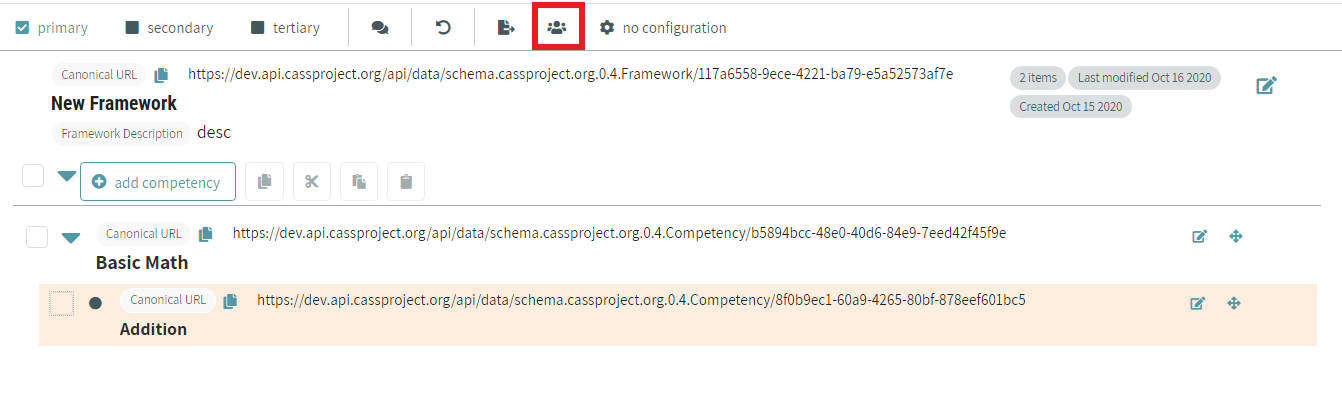
The system allows see who the admins and viewers of the framework are, and add or remove users and organizations. This view also has a shareable link to the framework that The system allows copy to the clipboard and give to someone else.
# Viewing Frameworks and Competencies in More Detail
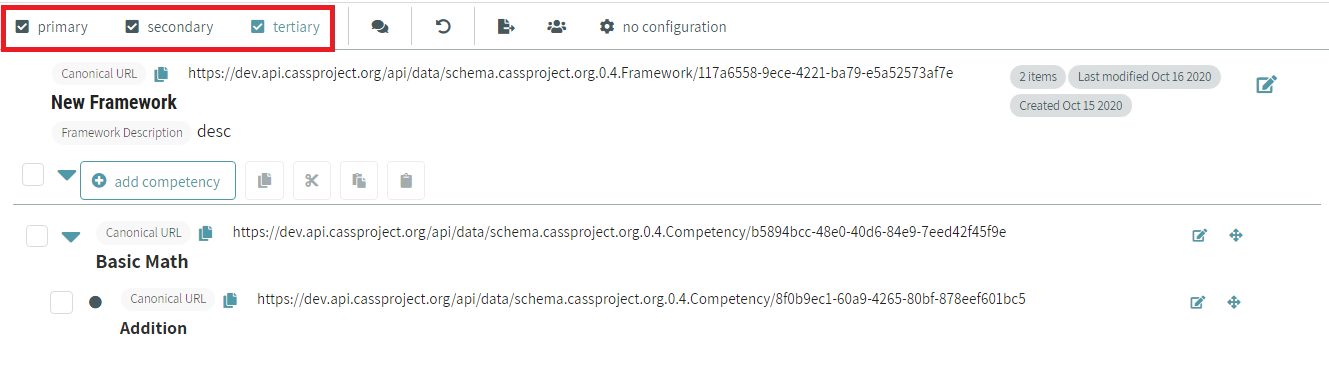
By default, only primary properties are shown on a framework and competencies. To see some additional properties, click secondary in the panel at the top of the screen. This will show all the properties assigned as primary and secondary in the configuration that have values. To see all properties that have values, click on tertiary.